Creating a User Email Distribution List
Creating a distribution list from users in your community allows for easy and efficient communication about changes or updates occurring throughout your network. Keeping users informed on changes ensures that community standards are followed and users are looped in to practice changes, updated workflows, and connected with their local leadership team.
Occasionally, user lists may be large enough (e.g., over 200 individuals) that some organizations may block mass emails thinking they are spam. To prevent this, larger email lists can be put into BCC and the sender's email can be placed in the “to” section to avoid bounce backs and emails stuck in spam filters. We recommend working with your IT department to review your options for sending mass emails to users.
To set up a distribution list of your users and/or Primary Contacts in your community, you will need to first download a list of active users from the Team Members tab. To do so:
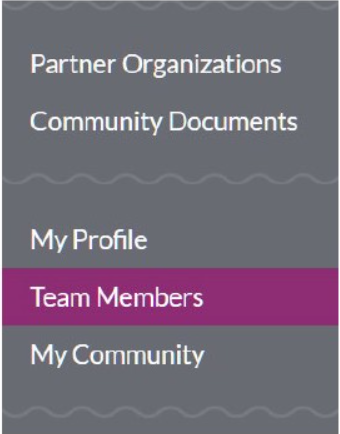
- Log into IRIS and select "Team Members" from the left navigation menu.
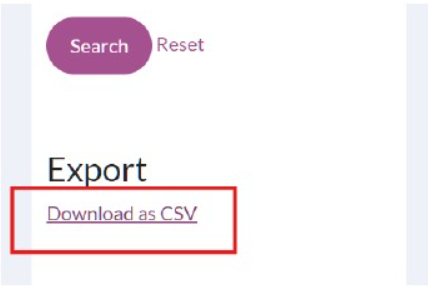
- On the right-hand side of the screen, at the bottom under the Search Team Members box, click on Download as CSV.
- When the "Finished" pop-up appears, click on the Download button.
- Open the downloaded Excel file.
- Apply filters to the Excel file by highlighting the first row and selecting "Sort & Filter" on the upper banner.

- Using filters, remove Deactivated organizations from the Status column.
- Highlight and copy user email addresses, pasting the email addresses in an email.
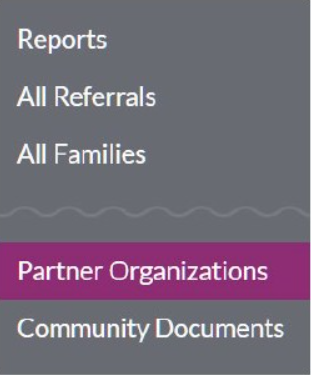
- Return to IRIS to gather Primary Contact email addresses. Select "Partner Organizations" from the left navigation menu.
- On the right-hand side of the screen, at the bottom under the Search Partners box, click on Download as CSV.
- When the "Finished" pop-up appears, click on the Download button. Open the downloaded file.
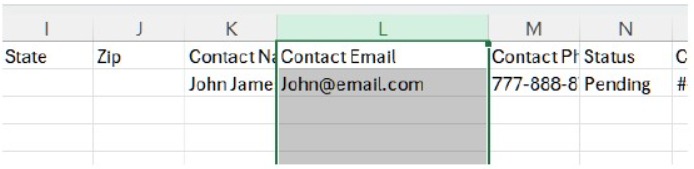
- Navigate to the Contact Email column.
- Drag to highlight and copy user addresses.
- Paste the email addresses in the email that you created.