Establishing & Editing Community Details
System Managers have the ability to edit a community's Service Areas, Organization Details, and Referral Questions. To access these features, start by selecting My Community from the Navigation Menu. 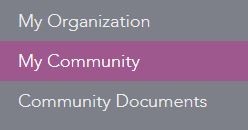
To update your community information use the tabs located at the top of the My Community page. 
Editing Details
- To edit your community name click on the details tab.
- Change your name using the text field.
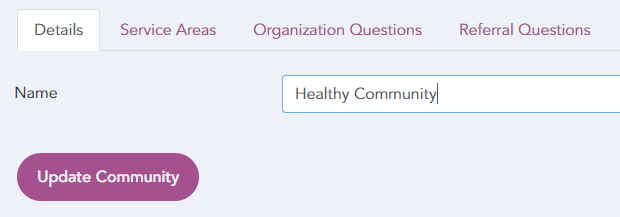
- To save your changes, click Update Community.
Establishing Service Areas
Service Areas are the bank of service categories offered by partner organizations in an IRIS community. Partners select each of the services that they provide from a list. On the Partner Selection screen, users may filter by Service Area when making a referral. NOTE: To add a new Service Area, contact your Administrator.
- To select which Service Areas are available for your community partners to choose from, check the box for each Service Area you would like to include.
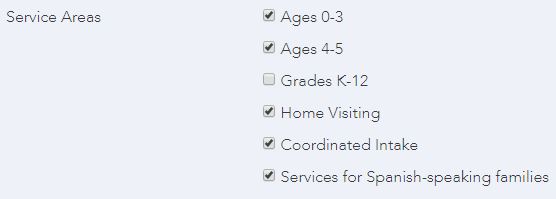
- To save your changes, click Update Community.
Establishing/Editing Organization Details Questions
Organization Details questions provide additional details for partners in an IRIS community. On the Partner Selection screen, users may view this information by clicking +See Details. NOTE: To add a new Organization Detail question, please contact your Administrator.
- To select which questions are included in your community's Organization Details screen, click the 'Select a question...' dropdown menu.

- Select the question you would like to include from the dropdown list.
- Click Add.
- To arrange the order of the questions, click and drag the = icon.

- To delete a question, click the X icon.
- To save your changes, click Update Community.
Establishing/Editing Referral Questions
Referral Questions make up the information that users communicate within the referral process. System Managers have the ability to choose which questions are available and the order in which they appear to the user. NOTE: To add a new Referral Question, please contact your Administrator.
- To select which questions are included on your community's Referral Information screen, click Select a question... dropdown menu.
- Select the question you would like to include from the dropdown list.
- Click Add.
- To arrange the order of the questions, click and drag the = icon.
- To delete a question, click the X icon.
- To save your changes, click Update Community.