Managing Community Documents

Managing Community Documents


System Managers may upload and edit the title and description of documents in their Community.

Adding Community Documents

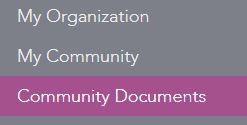
  1. Select Community Documents from the Navigation Menu. A vertical navigation menu with options My Organization, My Community, and Community Documents. The Community Documents option is highlighted in purple.
  2. Click New Document.
  3. Complete the fields for title and description. A form titled New Document with fields for Title, Description, and File upload. At the bottom is a purple button labeled Save document.
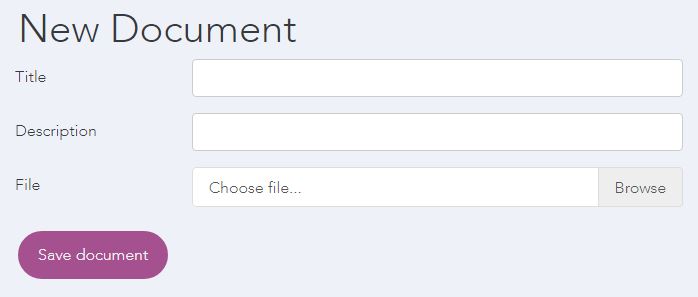
  4. Choose the file you would like to upload by selecting Browse and then double-clicking the file from your computer.
  5. Click Save Document.

Editing Community Documents

  1. Select Community Documents from the Navigation Menu. A vertical navigation menu with options My Organization, My Community, and Community Documents. The Community Documents option is highlighted in purple.
  2. Click Edit at the end of the title for the document you would like to edit. A white bar showing Exporting Data Desk Guide (Edit) with a red arrow pointing to the text, highlighting the document title for editing or removal.

  3. Complete the fields for title and description.
  4. Click Save Document.

Removing Community Documents

  1. Select Community Documents from the Navigation Menu. A vertical navigation menu with options My Organization, My Community, and Community Documents. The Community Documents option is highlighted in purple.
  2. Click the X at the end of the title for the document you would like to remove. A white bar showing Community Standards Guide (Edit) with a red arrow pointing to a small gray X button on the right side, indicating the option to remove the document.

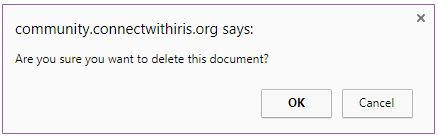
  3. Click OK on the confirmation message. A confirmation popup box from community.connectwithiris.org with the message: Are you sure you want to delete this document? Below are two buttons labeled OK and Cancel.