Managing Your Password
Setting Your Password
After accepting an email invitation to join IRIS, users will be directed to set their password.
- Enter your new password and then enter it again under password confirmation. Note: Passwords must meet the following requirements:
- Minimum of 8 characters
- At least 1 uppercase letter, 1 lowercase letter, 1 number, and 1 symbol
- Not match any of your last 10 passwords
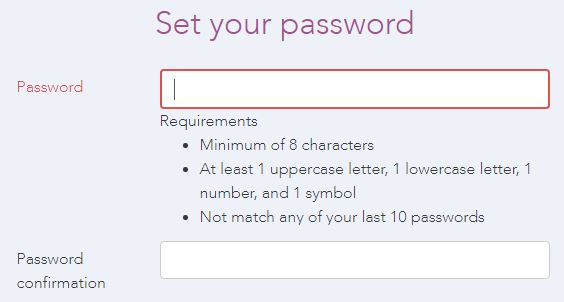
- Click Set my password.
Resetting Your Password
To reset your IRIS password:
- Navigate to the IRIS login page
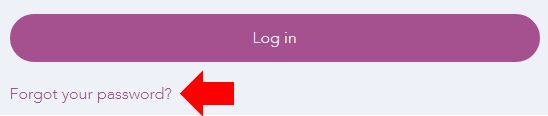
- Click the Forgot your password? link under the Log in button.
- Enter your email.
Changing Your Password
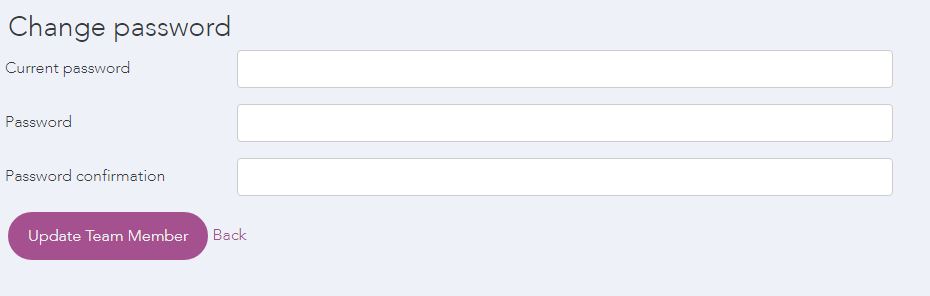
To change your IRIS password:
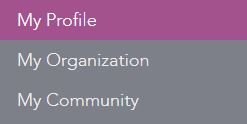
- Select My Profile from the Navigation Menu.
- Under Change password, enter your current password.
- Enter your new password and then enter it again under Password confirmation. Note: Passwords must meet the following requirements:
- Minimum of 8 characters
- At least 1 uppercase letter, 1 lowercase letter, 1 number, and 1 symbol
- Not match any of your last 10 passwords
- Click the Update Team Member button.