Setting up Shortcuts to Access IRIS
Creating web shortcuts and browser bookmarks offer IRIS users convenient access to their IRIS community. By pinning shortcuts to browsers or creating desktop icons, users can reduce the time spent locating the IRIS web page.
To pin IRIS as a web shortcut to your browser or to create a shortcut on your desktop, follow these steps using either Chrome or Firefox.
- Using either Chrome or Firefox navigate to Community Login.
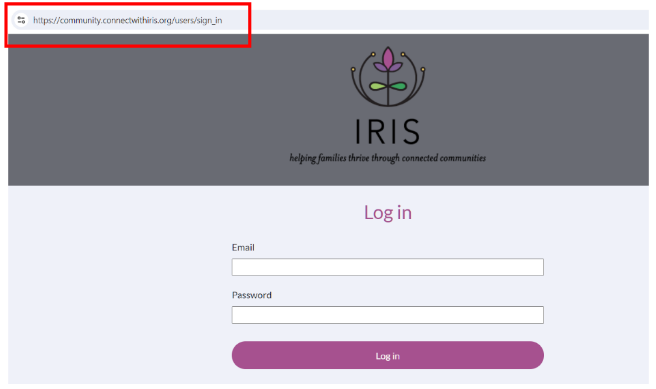
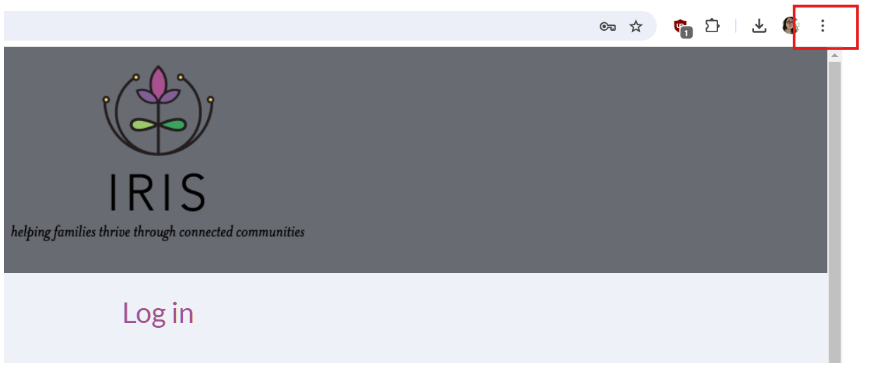
- Click on the menu icon (usually represented by three dots) in the top-right corner of your browser window.
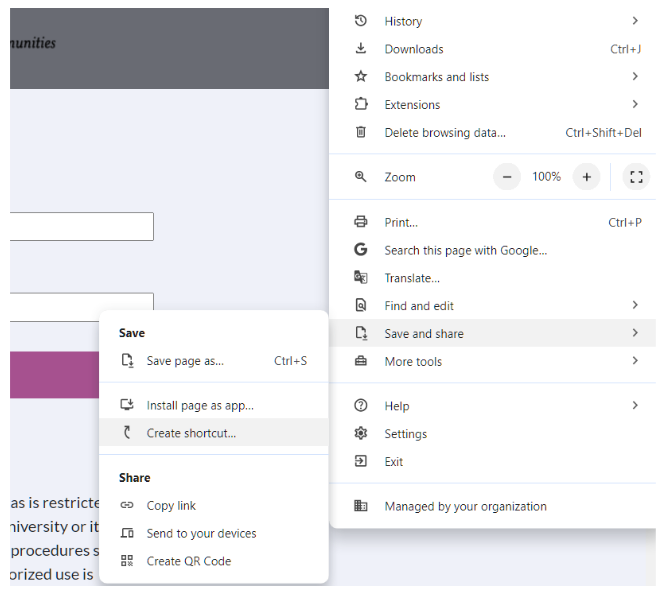
- Select "Save and Share" from the menu and then "Create shortcut."
Once you’ve selected “Create shortcut,” a clickable icon will appear on your desktop, making it easy to find and access your IRIS account. 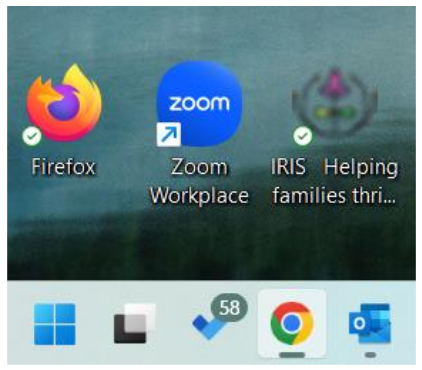
Alternatively, you can also bookmark the connectwithiris.org website by doing the following.
- Once again, navigate to Community Login.
- In Chrome or Firefox, click on the star icon in the address bar on the right side of the browser.
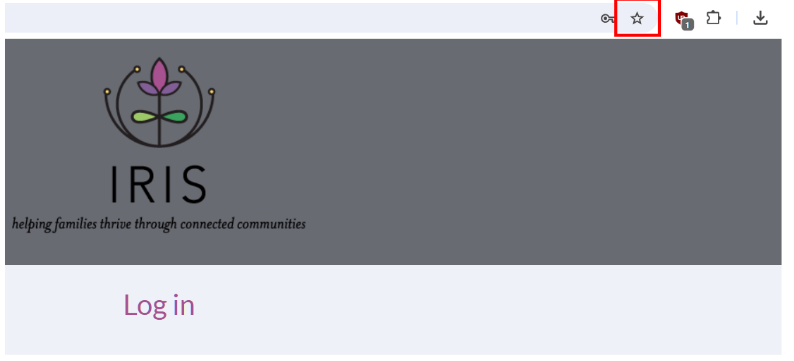
- Select “Bookmark this page.”
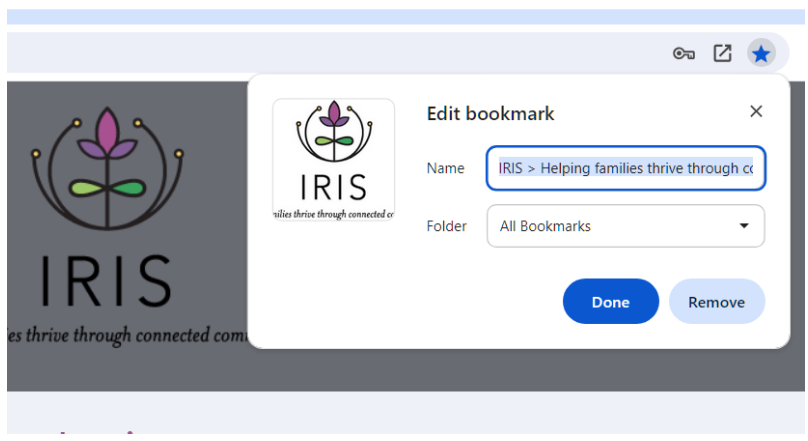
- This will create a shortcut located at the top of your browser window, underneath the web address line.
- You can then click on the bookmarked site for easy access to IRIS!