Exporting Data from IRIS
Exporting from All Referrals
The All Referrals export provides detailed information on referrals made in your IRIS Community.
To export data from All Referrals:
Select All Referrals from the Navigation Menu.
Use the Search Box to customize the information exported. You may filter the information by organizations referred by or to, referral status, and date range. If no search parameters are set, the export will contain all referral data you have access to.

In the Search Box, click Download Referral History or Download Referral Details under Export. An Excel spreadsheet titled 'referral-list' will download to your computer's Downloads folder.

Open the Excel spreadsheet.
When clicking Download Referral History, the spreadsheet will include the referral information below.
- Community and Community ID
- Name, date of birth, email, and phone number of family referred
- Information on the Organization that made the referral (Organization ID, Primary and Secondary Sector, user that sent the referral)
- Date the referral was made
- Information on the Organization that received the referral (Organization ID, Primary and Secondary Sector, user that received the referral)
- Referral status (referred/accepted/rejected/completed)
- Notes across all referral statuses
When clicking Download Referral Details, the spreadsheet will include all the above information, plus...
- Answers to the community-specific referral questions
- Comments made throughout the referral process
Exporting from All Families
The All Families export contains data on families referred for services in your IRIS Community.
To export data from All Families:
- Select All Families from the Navigation Menu.
- Use the Search box to filter by a specific family. If no search parameters are set, the export will contain all family data you have access to.
- Click Download as CSV under Export in the Search Families Box. An Excel spreadsheet titled 'client-list' will download to your computer's Downloads folder.
- Open the Excel spreadsheet.
- The spreadsheet will include the Family Profile information below.
- First and Last Name
- Family ID and System ID
- Birth Date
- Phone Number
- 'Has consented?'
- Community and Community ID
Exporting from Partner Organizations
The Partner Organizations export provides information on organizations in your IRIS Community.
To export data from Partner Organizations:
- Select Partner Organizations from the Navigation Menu.
- Use the Search box to filter by Service Areas or a specific organization. If no search parameters are set, the export will contain data on all organizations in your IRIS Community.
Click Download as CSV under Export in the Search Partner Organizations box. An Excel Spreadsheet titled ‘organization-list’ will appear in your computer's Downloads folder.

- Open the Excel spreadsheet.
- The spreadsheet will include the organization information below.
- Community and Community ID
- Title (Organization) and Organization ID
- Website
- Phone number
- Address
- City, State, Zip Code
- Contact Name & Phone Number
- Eligibility Requirements
- Purpose
- Service Areas
- Primary and Secondary Sector
- Tags
- Additional Organization Detail fields (if applicable for your Community)
Exporting From Team Members
The Team Members export provides an overview of user account details and status.
To export data from Team Members:
- Select Team Members from the Navigation Menu.
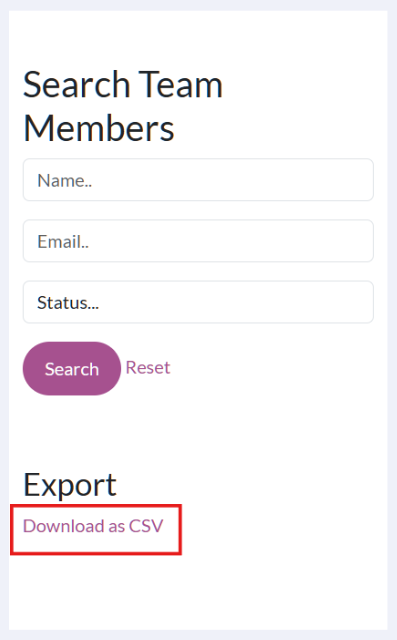
- Use the Search box to filter by a specific user or organization. If no search parameters are set, the export will contain data on all users in your organization or IRIS Community.
Click Download as CSV under Export in the Search Team Members box. An Excel Spreadsheet titled "user-list" will appear in your computer's Downloads folder.
- Open the Excel spreadsheet.
- The spreadsheet will include the following Team Member information.
- First and Last Name
- Email and Phone number
- Community and Community ID
- Organization and Organization ID
- Implementation Community (only applies to IRIS Local Leaders)
- The user’s preferred email notification selections (if they receive rejected, accepted, and completed referral emails or comment notifications)
- If the user is a System or Data Manager
- The date their IRIS account was created
- The Invite Sent column, which captures the most recent date the New User Invitation email was sent
- The Invite Accepted column, which provides the date a user accepts their IRIS invitation and sets their password
- The Last Password Login field, that updates with a new date anytime a user enters their password and successfully logs into IRIS
- The Last MFA login, which captures the last time a user logged in using MFA. If the user logged in before 9/16/26, this field won't update until the user needs to authenticate their account
- The user’s IRIS account status; it will show if they are active or deactivated and if they are locked out due to too many failed password attempts. If their account is deactivated, the reason for deactivation is also included