Canceling or Editing a Referral
You can edit or cancel a sent referral from either the My Home or All Referrals page. My Home is helpful for sorting referrals by oldest, newest, or by status. All Referrals is best used for searching for specific families or organizations. NOTE: Referrals can only be canceled or edited if the referral has not yet been accepted or rejected by the organization receiving the referral.
Canceling or Editing from My Home
- From My Home, click the Outgoing button on the Referral Navigation Bar.

NOTE: You may sort the order in which you see your outgoing referrals from the following options under the Referral Navigation Bar: Newest, Oldest, Status, Family Last Name, and Referral Partner.
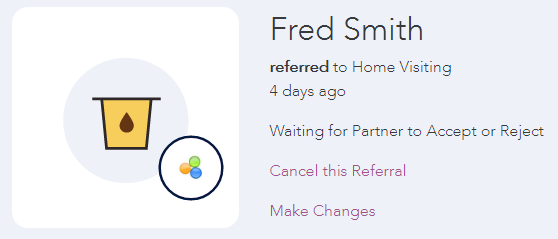
- Select a referral by clicking on the family's name, the Referral Icon, or the referring organization's logo within the Referral Card.
- On the referral details page, you may select either strong>Cancel this Referral or Make Changes, located to the right of the Referral Card. To cancel, click Cancel this Referral. To edit, click Make Changes, make the necessary changes, and click Done!
Canceling or Editing from All Referrals
1. Select All Referrals from the Navigation Menu.

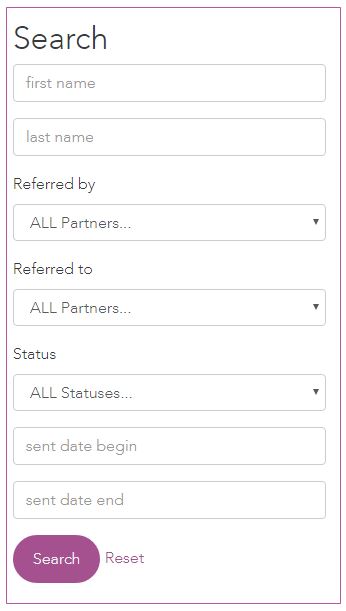
2. There are two options for viewing referrals: the center All Referrals Grid and the Search Box on the right side of the screen. From the grid, categories can be sorted in ascending or descending order by clicking on the purple category headings. Categories include: Name, From, To, Sent Date, and Status.

3. You can search for referrals by First and/or Last Name, Referred by, Referred to, Status, and/or date range in the Search Box.
4. To cancel or edit a referral, select the name of the family.
5. On the referral page, you may select either Cancel this Referral or Make Changes under the status section on the upper right of the page. To cancel, click Cancel this Referral. To edit, click Make Changes, make the necessary changes in the fields and click Done!