Editing a Family Profile

Editing a Family Profile


How to Edit a Family Profile

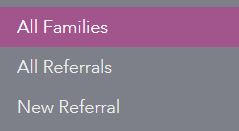
1. Select All Families from the Navigation Menu. A vertical navigation menu with options ‘All Families,’ ‘All Referrals,’ and ‘New Referral.’ The ‘All Families’ option is highlighted in purple, indicating it’s currently selected.
2. In the Search Families box, type in a first and/or last name. A search box titled ‘Search Families’ with two text fields labeled first name and last name, and a purple ‘Search’ button below.
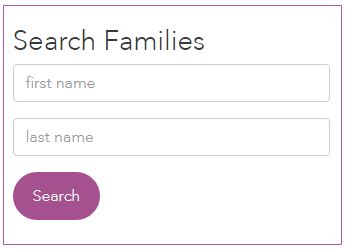
3. Click Search.

4. Click the name of the family profile you want to edit.

5. Click Edit Family. A purple rounded rectangular button with white text that reads ‘Edit Family.’

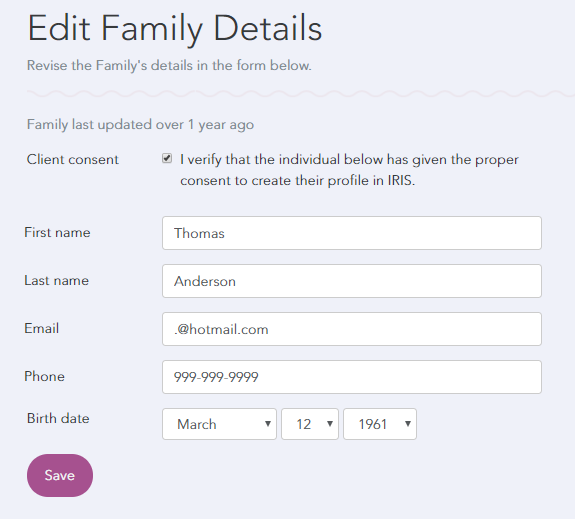
6. Make the desired edits and click Save to save changes. A web form titled ‘Edit Family Details’ showing fields for first name, last name, email, phone, and birth date. A checkbox at the top verifies client consent. The form is filled in with example information for Thomas Anderson. A purple ‘Save’ button is at the bottom.