IRIS Reports
Reports may be accessed on the left navigation menu within IRIS. You may also click the headings below to take you to the report in IRIS.
Referral Reports
Over time, a referral made in IRIS moves through sent, accepted or rejected, and completed status. In these reports, set date filters to view all referrals during a date range. Use "status as of" to view the status of the same referrals on a specific date. If no "status as of" date is selected, the report will display the status of the referrals as of today’s date.
- Use the Community Referrals report to explore the status and outcome of referrals sent in your IRIS community as well as the number of referrals IRIS partners have sent and received.
- Use the Incoming Referrals report to explore referrals received by your organization as well as the status and outcome of those referrals.
- Use the Ongoing Referrals report to explore referrals sent by your organization as well as the status and outcome of those referrals.
Filtering Referral Reports
Use the "From this date" and "To this date" filter to select a date range. The "Status as of" can be used to view the status of the same referrals on a specific date. 1. Click on the date box and scroll through to select the desired date for each filter. You can also type the desired date using the mm-dd-yyyy format shown in the box.
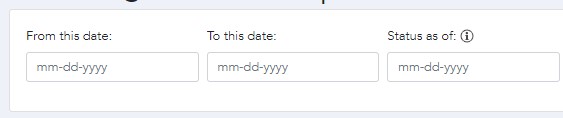
If no date is selected, the report will default to the date that the organization launched in IRIS. A user with Switch Access to more than one organization may use the dropdown to choose which organization’s data to view. 2. Click the dropdown to select which organization you would like to view outgoing referrals for.
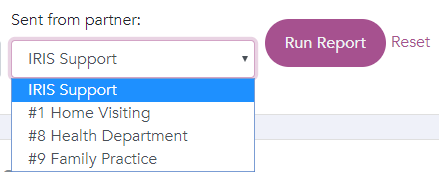
3. Click "Run Report" to see a summary of referral data based on the date parameters that have been set.
Resetting Referral Reports
Click "Reset" to clear the report and start a new one.
Printing Referral Reports
Click "Print Report" to either print or save the report as a PDF.
Sectors Report
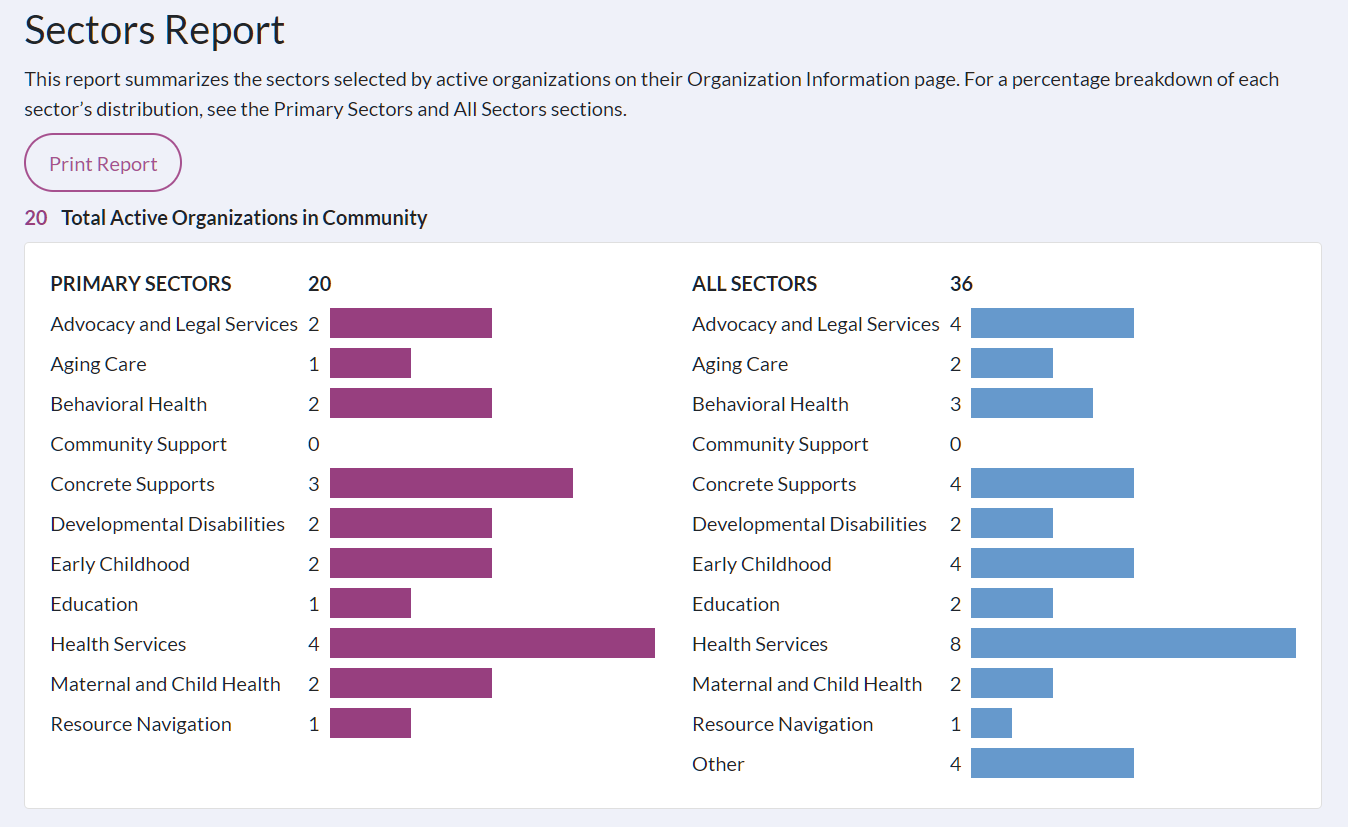
The Sectors report summarizes the sectors selected by active organizations on their Organization Information page. It has three parts: a summary bar graph, the Primary Sectors section, and the All Sectors section. The Primary Sectors and All Sectors sections provide a percentage breakdown of each sector’s distribution.
Use this report to explore what sectors are represented by the Partner Organizations in your community.
Navigating the Sectors Report
At the top of the page is a bar chart summarizing the Primary Sector selections and another summarizing both Primary and Secondary Sector selections for all active organizations.
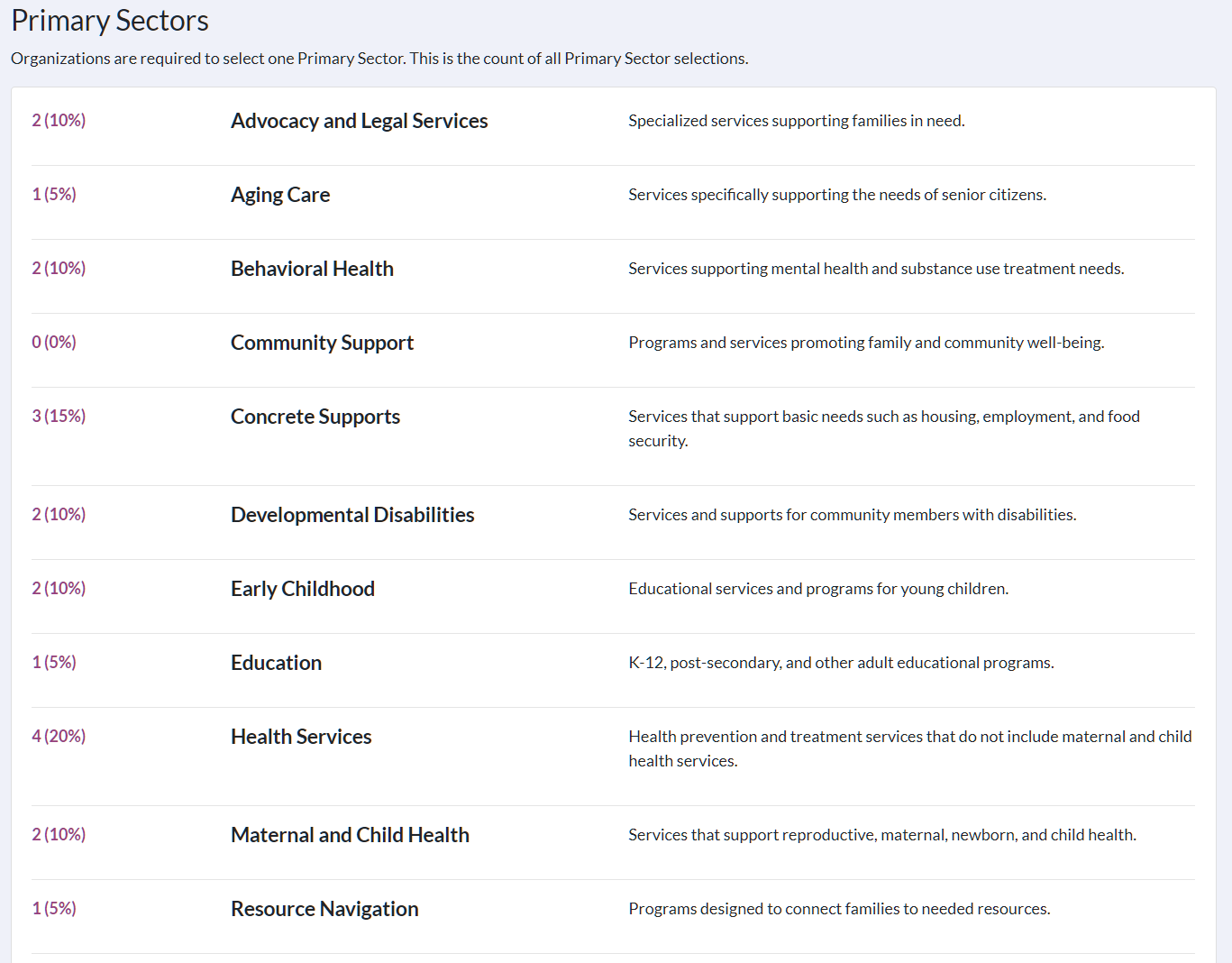
In the Primary Sectors section of the report, each sector and their definition are listed. Alongside each sector, the number of organizations identifying it as their Primary Sector is displayed along with the percentage of organizations that selected option.
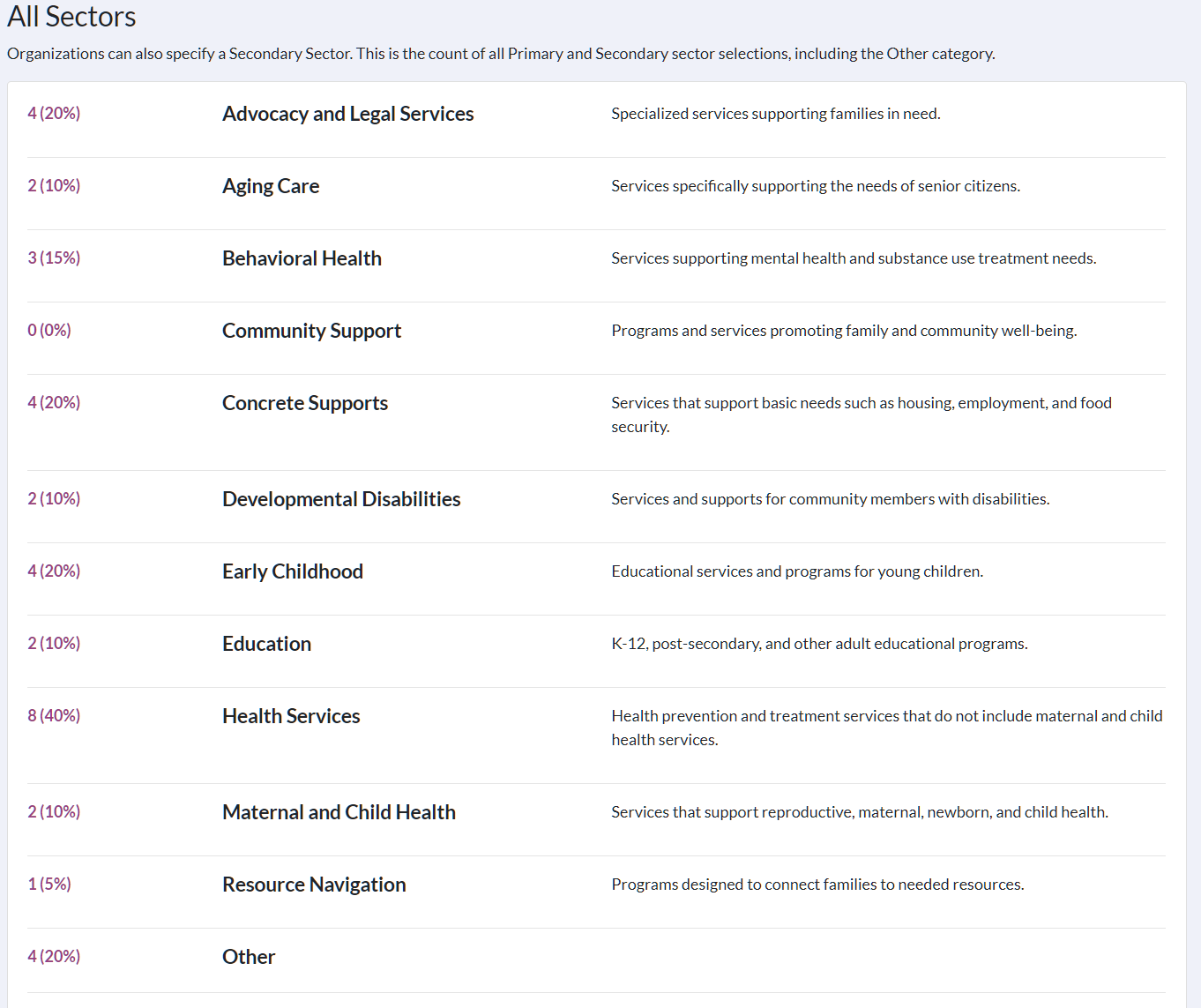
Similar to the previous section, the All Sectors section lists each sector, its definition, and the selected count. However, this section provides a count of the Primary and Secondary Sector selections for each active organization in the community.
An organization's Primary Sector is chosen based on its core services. Organizations can also select an additional Secondary Sector that accurately reflects their services, including the option to choose "Other" and provide a custom response. These selections are combined in the All Sectors count.
Printing the Sectors Report
Click "Print Report" to either print or save the report as a PDF.