Logging Into IRIS
**For the Spanish-language version of this guide, please see Autenticación multifactor de IRIS.
When logging into IRIS using multifactor authentication (MFA), you will need an authenticator app (e.g., Duo, Google Authenticator, or Microsoft Authenticator) downloaded to your mobile device (i.e., cell phone or tablet) and access to a computer.
If you have not set up your MFA account, please see the Setting Up Multifactor Authentication guidance document for instructions.
Weekly MFA Login Process
After you have set up your MFA account, you will only need to sign in using MFA once per business week or after clearing your browser’s cache. To do so:
1. Open a supported browser (Apple Safari, Google Chrome, Microsoft Edge, or Mozilla Firefox). Internet Explorer is not a supported browser.
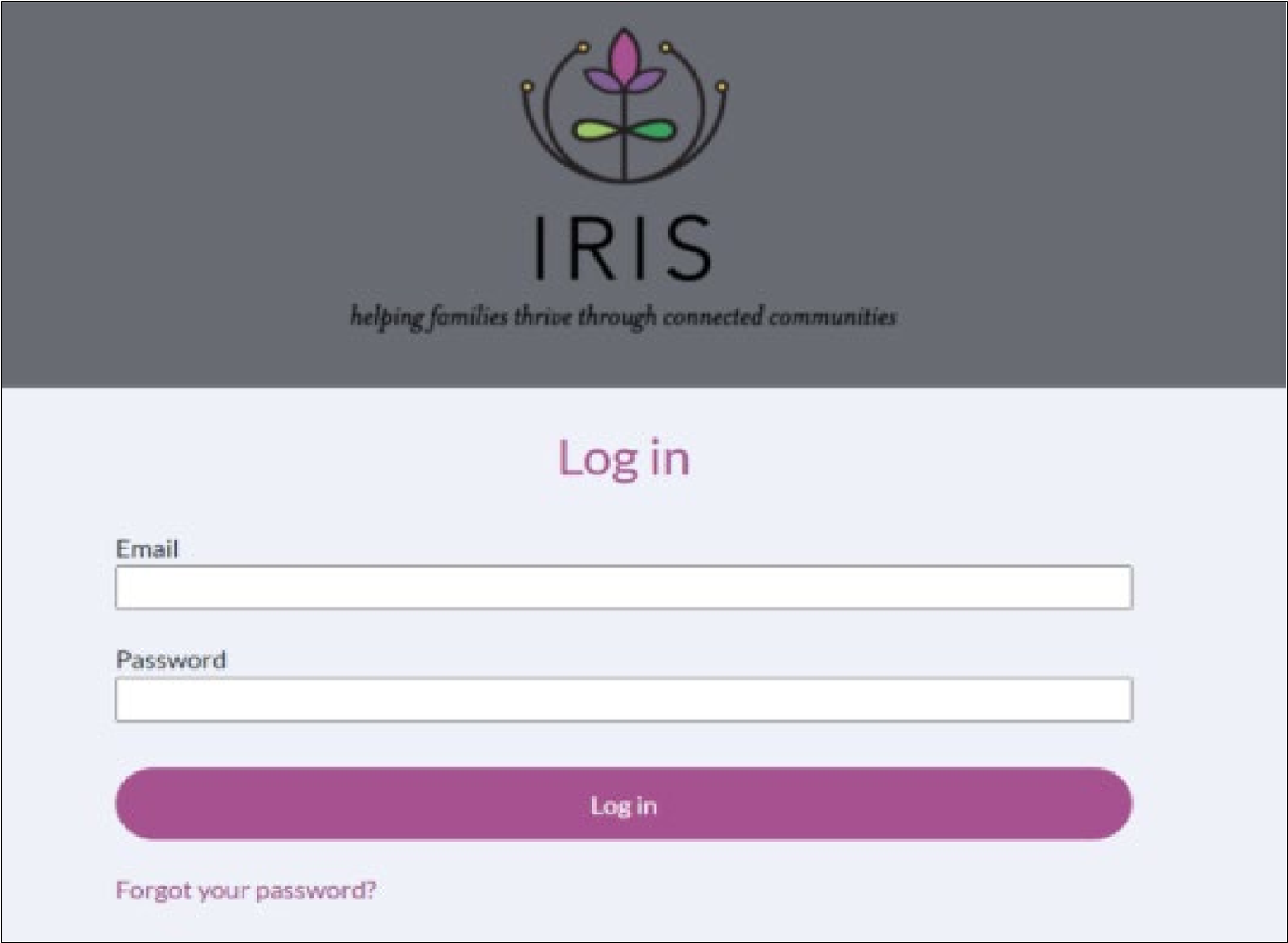
2. Navigate to the IRIS Community sign in page.
3. Enter username and password.
4. Click Log in.
5. Open your authenticator app on your mobile device.
6. Locate the 6-digit code displayed for your IRIS account in the app.
7. Enter the six-digit verification code in IRIS.
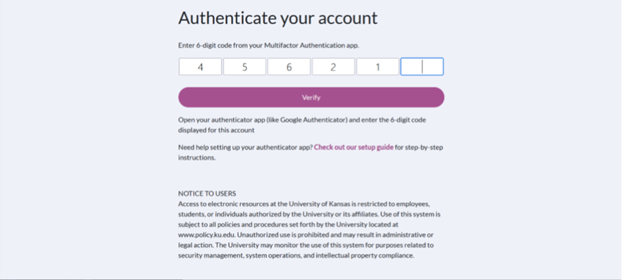
8. The page will automatically verify you. Success! You are logged into IRIS.
Standard Login Process
For all other log ins during the same business week after you’ve authenticated your account using MFA, you will:
1. Open a supported browser (Apple Safari, Google Chrome, Microsoft Edge, or Mozilla Firefox).
2. Navigate to the IRIS Community sign in page.
3. Enter username and password.
4. Click Log in.
5. You have successfully logged into IRIS!