Setting Up Multifactor Authentication
**For the Spanish-language version of this guide, please see Autenticación multifactor de IRIS.
Use the following article to guide your multifactor authentication (MFA) setup process. You will need an authenticator application installed on your mobile device (such as a cell phone or tablet) and access to a computer.
To set up your MFA account, you will need to complete the following activities:
- Select and download an authenticator app to your mobile device. We recommend using either Duo, Google Authenticator, or Microsoft Authenticator. Instructions are outlined in the Selecting and Downloading an Authenticator App section below.
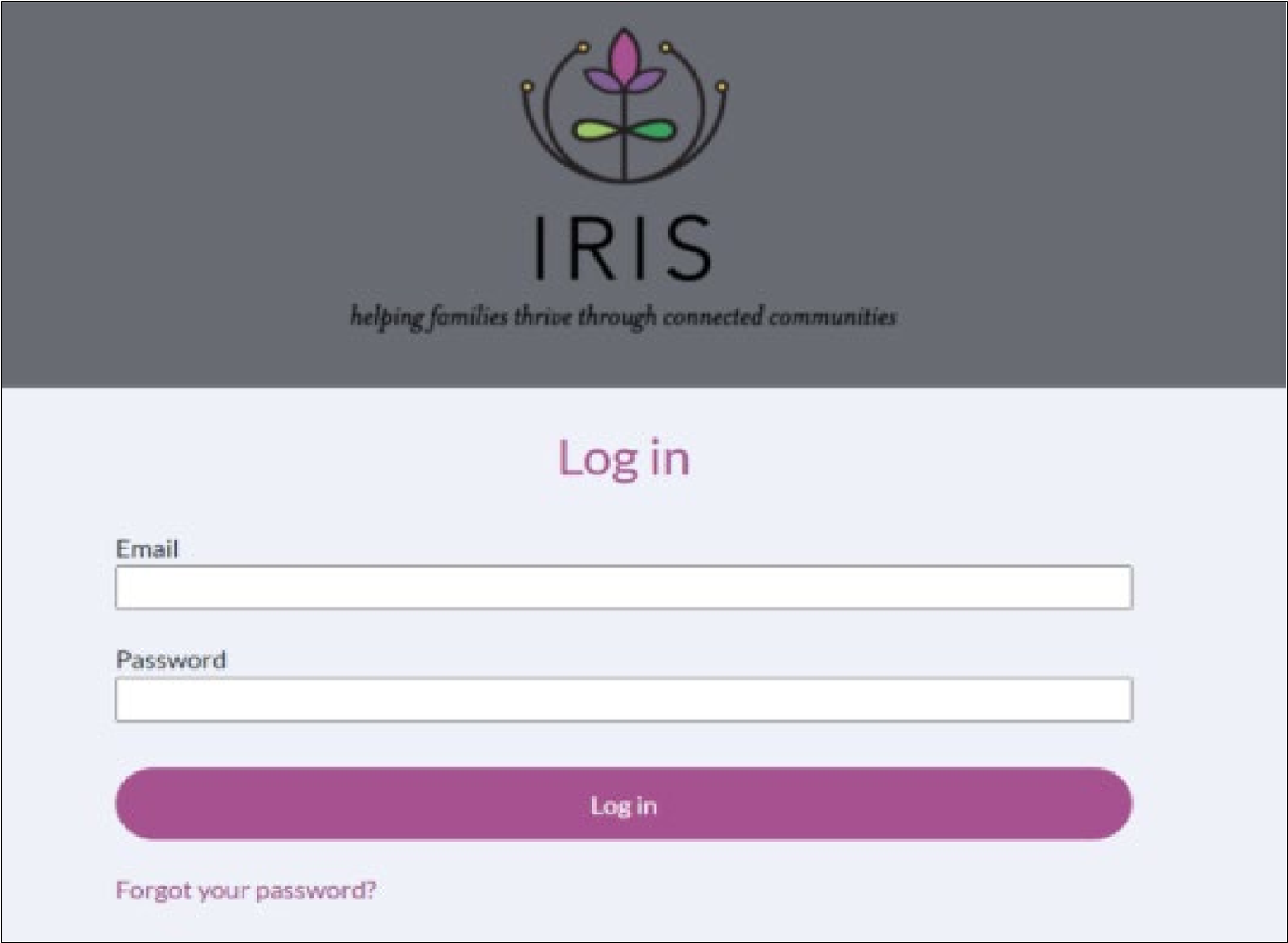
- Log into IRIS. Go to IRIS's Community sign in page on a computer.
- Set up the connection between your downloaded authenticator app and your IRIS login. Instructions on this process are outlined in the Setting up Your MFA Account section below.
- Log into IRIS. On your computer, log into IRIS once more with your username and password.
- Provide the 6-digit code. Enter the 6-digit code produced in your authenticator app into IRIS.
Selecting and Downloading an Authenticator App
You may use any authenticator app; however, IRIS Support is only able to provide setup guidance for our recommended apps (i.e., Duo, Google Authenticator, and Microsoft Authenticator).
To download an authenticator app, visit the Google Play store or the Apple store on your mobile device, search for an authenticator app, then download it. Duo Mobile, Google Authenticator, and Microsoft Authenticator are available for both Apple iOS and Android.
Setting Up Your MFA Account
You will need your mobile device and your computer to complete the following steps.
- Log into IRIS on a computer using a supported browser (Apple Safari, Google Chrome, Microsoft Edge, or Mozilla Firefox).
- Upon your first log in, you will encounter the MFA setup page with instructions and a QR code that you will scan in IRIS.
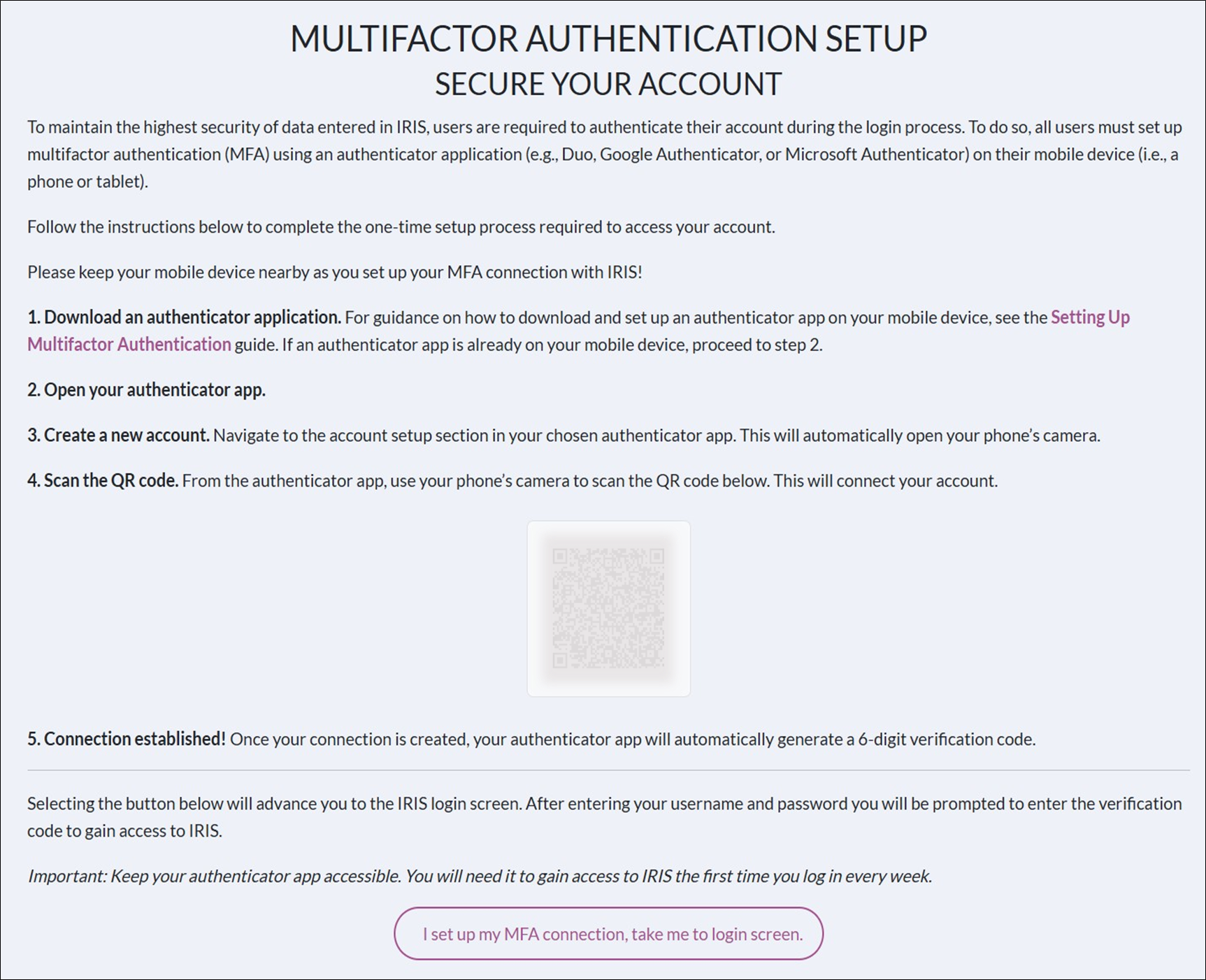
- Open your chosen authenticator app in your mobile device to begin adding your new IRIS MFA account.
- We have provided guidance on how to set up Duo Mobile, Google Authenticator, and Microsoft Authenticator. Skip to the correct section below depending on the application you have installed.
Duo Mobile
Open the app on your mobile device and tap on the Continue button.
.png)
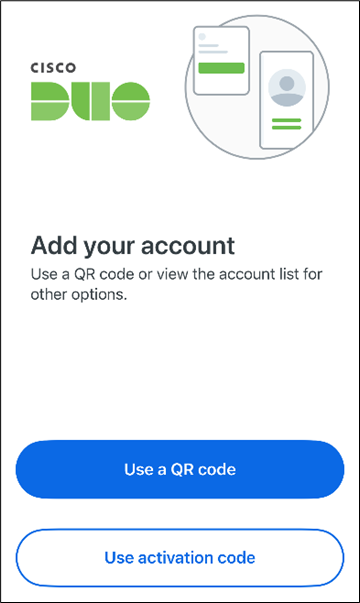
Click on Use a QR code.
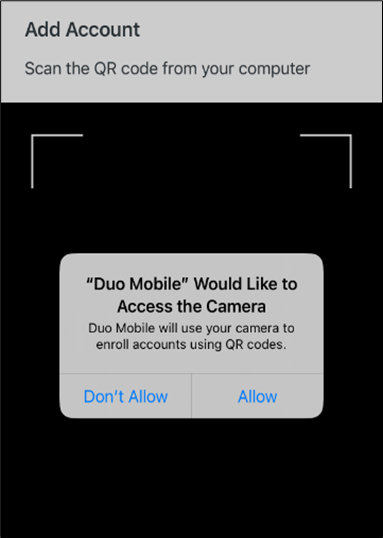
When prompted, click Allow on the “Authenticator Would Like to Access the Camera” message. Then scan the QR code in IRIS with your camera.
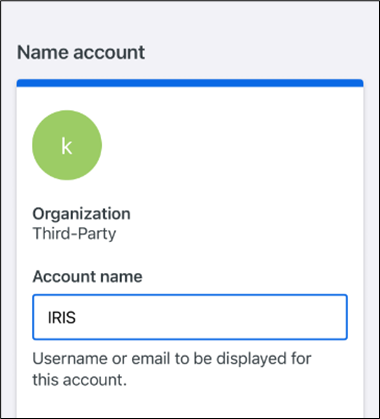
We recommend setting your account name to “IRIS,” so it is easy to identify each time you log into IRIS.
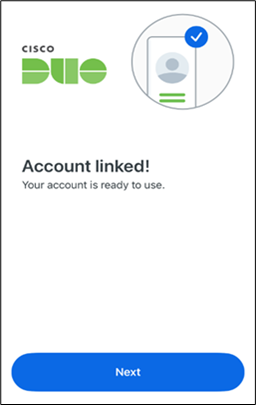
Click Next on the “Account linked!” page. Duo is now set up and ready for use.
Google Authenticator
Open the app on your mobile device and tap on the Get Started button.
.png)
You will have the option to either log in with your Google account or use the app without logging in.
.png)
Click on Scan a QR code.
.png)
If prompted, click Allow on the “Authenticator Would Like to Access the Camera” message.
.png)
Scan the QR code in IRIS with your camera. Google Authenticator is now set up and ready for use.
Microsoft Authenticator
Open the app on your device. On the home screen of the app, click Scan a QR code.
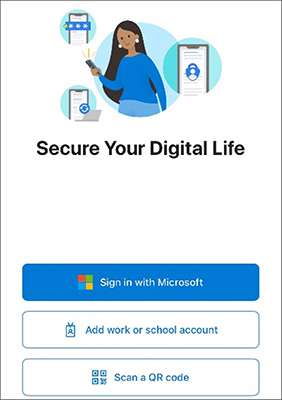
Select the type of account you are adding based on your preferences, then select Scan QR Code on the pop up.
.png)
After clicking Scan QR Code, the app will ask for permission to access the device’s camera. Click Allow.
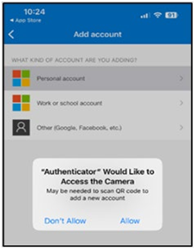
Using the scanning feature in the app, scan the QR code in IRIS. Microsoft Authenticator is now set up and ready for use.
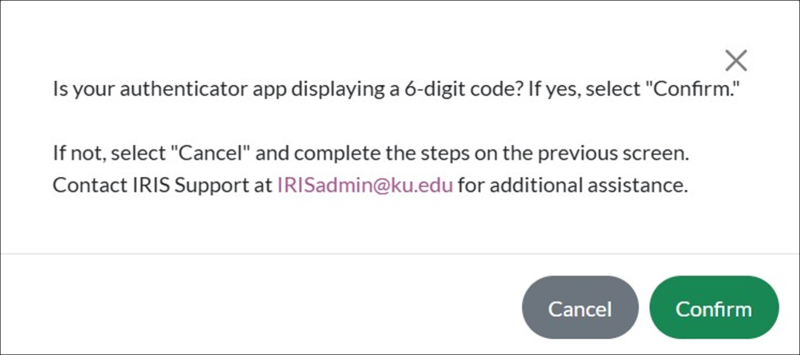
- After scanning the QR code in IRIS, your authenticator app should display a 6-digit code. This indicates you have successfully created your IRIS MFA account.
Note: If you don’t see a 6-digit code, click Cancel and retry the setup process.
- Click the I set up my MFA connection, take me to login screen button.

- Click Confirm on the pop up to return to the IRIS login page.
- Log in once again with your email and password.
- Enter the 6-digit verification code displayed in your authenticator app on the authenticate your account page.
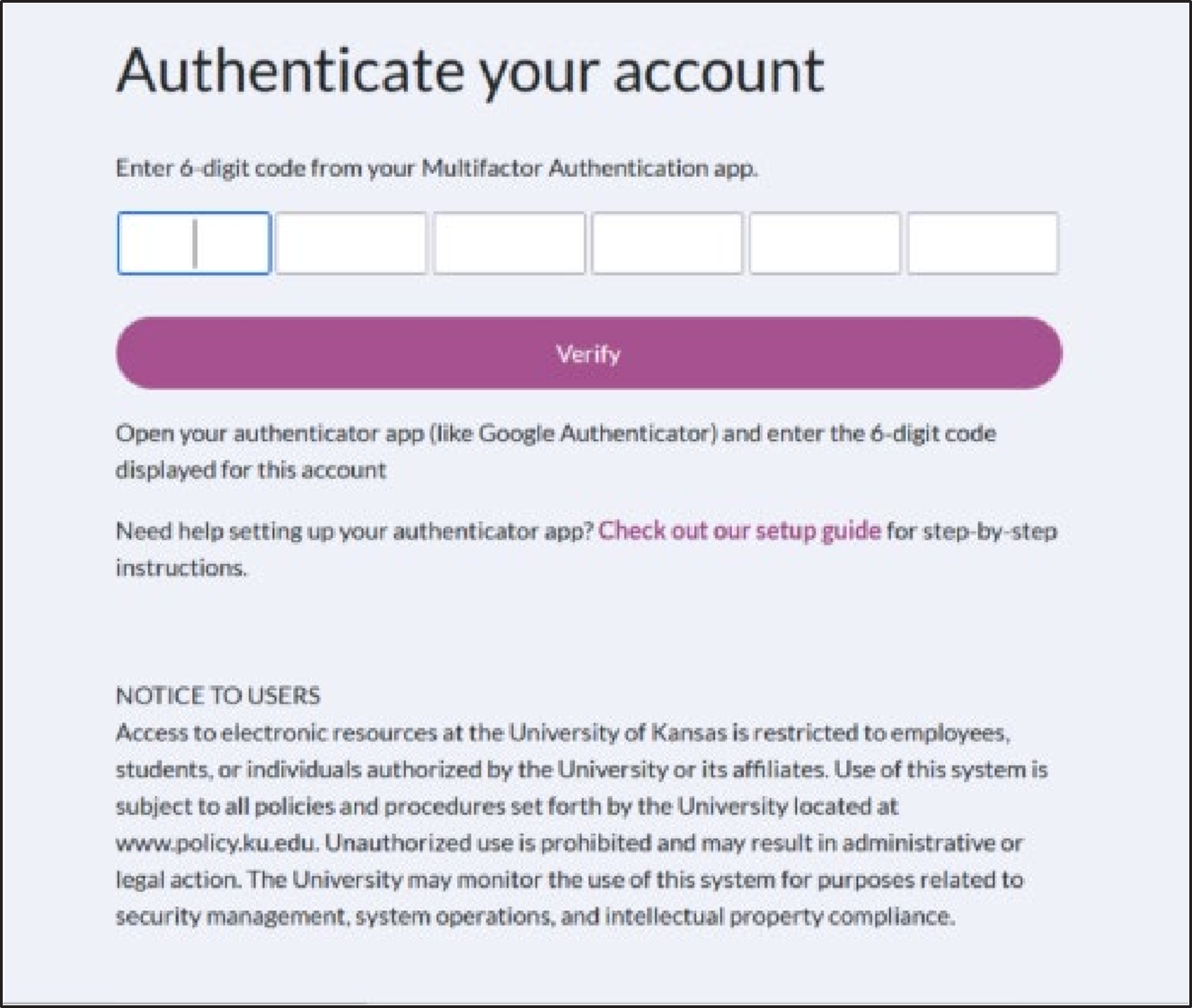
10. The page will automatically verify you. Success! You are logged into IRIS.