Managing Suspended Organizations
This guidance explains how System Managers can identify and proactively address the system conditions, such as inactive users, that lead to organizations getting suspended.
No Active Users
The suspended status will be assigned to organizations with no active users. Once suspended, organizations will not appear on the Partner Selection screen or the Partner Organization page. As the System Manager, you will see the below notification if you attempt to deactivate the last user at an organization. Clicking Deactivate User will deactivate the user and suspend the organization.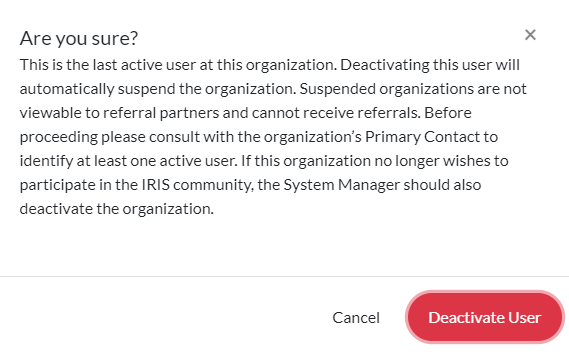
An organization can also become suspended if the last user is deactivated due to inactivity. Inactivity occurs if a user has not logged into IRIS for 120 days. When an organization enters the suspended state, you and the organization’s Primary Contact will receive an email notification informing you of the status change.
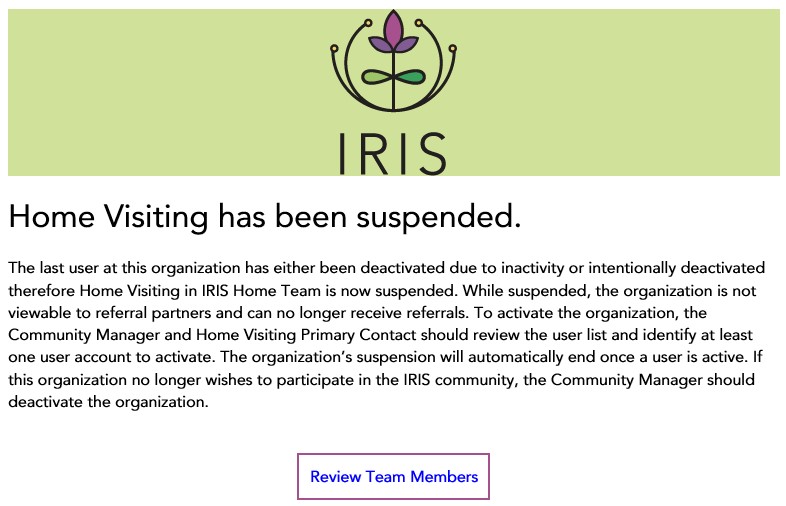
To activate the organization:
- Click the Review Team Members button in the email.
- Work with the Primary Contact to review the user list and either identify a user to activate or identify a new user to grant access to.
- Primary Contacts can use the Invite Team Member button on the Team Members tab to request access for new users.
Once an organization has been activated, you and the organization’s Primary Contact will receive an email notification verifying the activation. The organization will also be visible again on the Partner Selection screen and the Partner Organization page.
User and Organization Access Review
We recommend performing a regular review of user access and organization status to address the conditions that may result in suspended organizations.
Tracking Inactive Users
Tracking user deactivations due to inactivity is integral to the smooth operation of an IRIS Community. Without engaged partners managing referrals for their organization, families may not get access to the care they need. Since users that have not logged in to IRIS in 120 days will cause an organization to be suspended, tracking and engaging with them before their deactivation can prevent the suspension from occurring.
System Managers can find users about to go inactive by accessing the Team Members export.
- Select Team Members from the Navigation Menu.
- Click Download as CSV under Export in the Search Team Members box. An Excel Spreadsheet titled "user-list" will appear in your computer's Downloads folder.

To identify users approaching deactivation due to inactivity, look in the export for the "Last Password Login" date column. Then,
- Add a Date of Deactivation column.
- Enter =T2+120 in the first Date of Deactivation row, copying the formula down the whole column.
- If this does not produce a date, highlight the Date of Deactivation column and change the number format to “Custom,” selecting “m/d/yyyy h:mm” as your option.
- If the Last Password Login column is blank, you may receive an invalid date such as "4/29/1900." This means a user never logged in to IRIS. You can rename the field "never logged in."
- Sort by the resulting date.

Work with Primary Contacts of organizations that have users about to be deactivated to ensure they log in before the inactivity date listed in the export.
Finding Suspended Organizations
To determine if an organization is suspended:
- Navigate to the Partner Organizations tab on the left navigation menu.
- Export the CSV using the link on the bottom right of the page.
- Review the Status and Suspended Date columns to see if any organizations are suspended. If an organization is suspended, the status column will read "Suspended" and the suspended date column will list the date the organization was suspended.

- If any suspended organizations are found in the review, navigate to the Team Members tab.
- Use the Search Team Members panel on the right side to filter down to the suspended organization.

- Work with the Primary Contact to review the user list and either identify a user to activate or identify a new user to grant access to. Once an organization has been activated, you and the organization’s Primary Contact will receive an email notification verifying the activation. The organization will also be visible again on the Partner Selection screen and the Partner Organization page.