Data Summary Guide
This guide provides an overview for using exported referral data to locate the total number of referrals made, the status of the referrals, rejected referral responses, completed referral responses, a summary of other responses, and average response time. This data can guide meaningful conversations around enhancing your referral network and processes at both the organization and community level. Before using this guide, please follow the directions in the Exporting Data from IRIS section to download your data and the Preparing Data section to clean and filter your data.
Total Number of Referrals
- Click the column header above “From organization”. This will highlight the entire column.
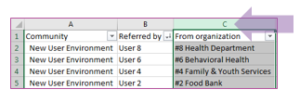
- With the column still highlighted, find the total count at the bottom right of the spreadsheet.
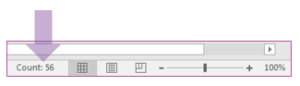
Please note: To find the overall number of referrals, you must subtract one from the count listed to account for the column titles in row 1.
Status of All Referrals
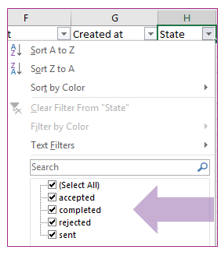
- To find the number of referrals for each status, click the dropdown arrow next to “State”.
- Click the box titled “Select All” to deselect all options.
- Check the box of a status (accepted, completed, rejected, sent) and press OK.
- Click the column header above “State” to highlight the column.
- With the column still highlighted, find the total count at the bottom right of the spreadsheet to determine the count for the referral status. Repeat this process for each referral status.
Please note: You must subtract one from the count listed to account for the column title in row 1.
Rejected Referral Responses
- To view the rejected responses, click the dropdown arrow next to “Rejected response”.
- Click the box titled “Select All” to deselect all options.
- Check the box of a rejection response and press OK.
- Click column header above “Rejected response”. This will highlight the entire column.
- With the column still highlighted, find the total count at the bottom right of the spreadsheet to determine the count for each response.
Please note: You must subtract one from the count listed to account for the column title in row 1.
Completed Referral Responses
- To view the completion responses, click the dropdown arrow next to “Completed response”.
- Click the box titled “Select All” to deselect all options.
- Check the box of a completion response and press OK.
- Click the column header above “Completed response.” This will highlight the entire column.
- With the column still highlighted, find the total count at the bottom right of the spreadsheet to determine the count for each referral status.
Summary of Other Responses
- To view the responses categorized as Other, click the dropdown arrow next to “Rejected response” or “Completed response.”
- Click the box titled “Select All” to deselect all options.
- Check the box titled “Other” and press OK.
- Read each comment in the corresponding comments section and determine categories to summarize the responses.
Average Response Time
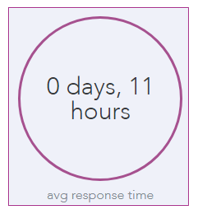
- To find the average response time for referrals, click “All Referrals” on the left menu in IRIS. The system defaults to show the average response time since launch.
Each time you update the sent date begin and sent date end fields and press the Search button, the average response time visual will adjust to display the response time for referrals during that time period.